Deploy on Virtual Machine
About this guide
In this guide, we will explain how to download and start an Appliance Virtual Machine to run TAO Community Edition.
Requirements
To achieve this deployment, we will need:
About arm64 architecture
Virtual Machine deployment is not available yet on arm64 architecture.
- an
x86_84host machine, able to allocate at least 8GB of RAM and 4 vCPUs - at least 40GB of available space disk (prefarbly on high-speed storage)
- a reliable network, with high-speed Internet connection
- while Appliance can be used offline, first start will require to download 3GB of data
- ensure your network is allowing unregistered devices
- Oracle VirtualBox 7.2 (or later)
Download Appliance image
From your computer, browse release link of tao-ce/cozy, and look for tao-ce-cozy-vm-server.ova file.
Latest image can be directly downloaded here.
Load Appliance in VirtualBox
Once downloaded:
- Open VirtualBox.
- In main menu, click
File>Import Appliance…. - In
Import Virtual Appliancewizard, chooseLocal File System, then click on browse icon, and select downloaded image. - In
Settings, you can check parameters (in particular CPU/RAM allocation). ClickFinishbutton to proceed with import. - Once imported, right-click on the virtual machine, then
Settings… - In
Expertsettings, go toNetwork, and check forAdapter 1. Ensure it is attached toBridge Adapter, and that the interface name match your main network interface. - Click
OK, then you canStartthe virtual machine.
Setup Appliance at first boot
About this wizard
This wizard will help you to configure basic settings at a early stage of deployment, as TAO Community Edition is not yet starting.
For more settings, you will be able to access Cockpit on https://tao-community-edition.local:9090 after system is started.
On first boot, you will notice a prompt to proceed to appliance setup.
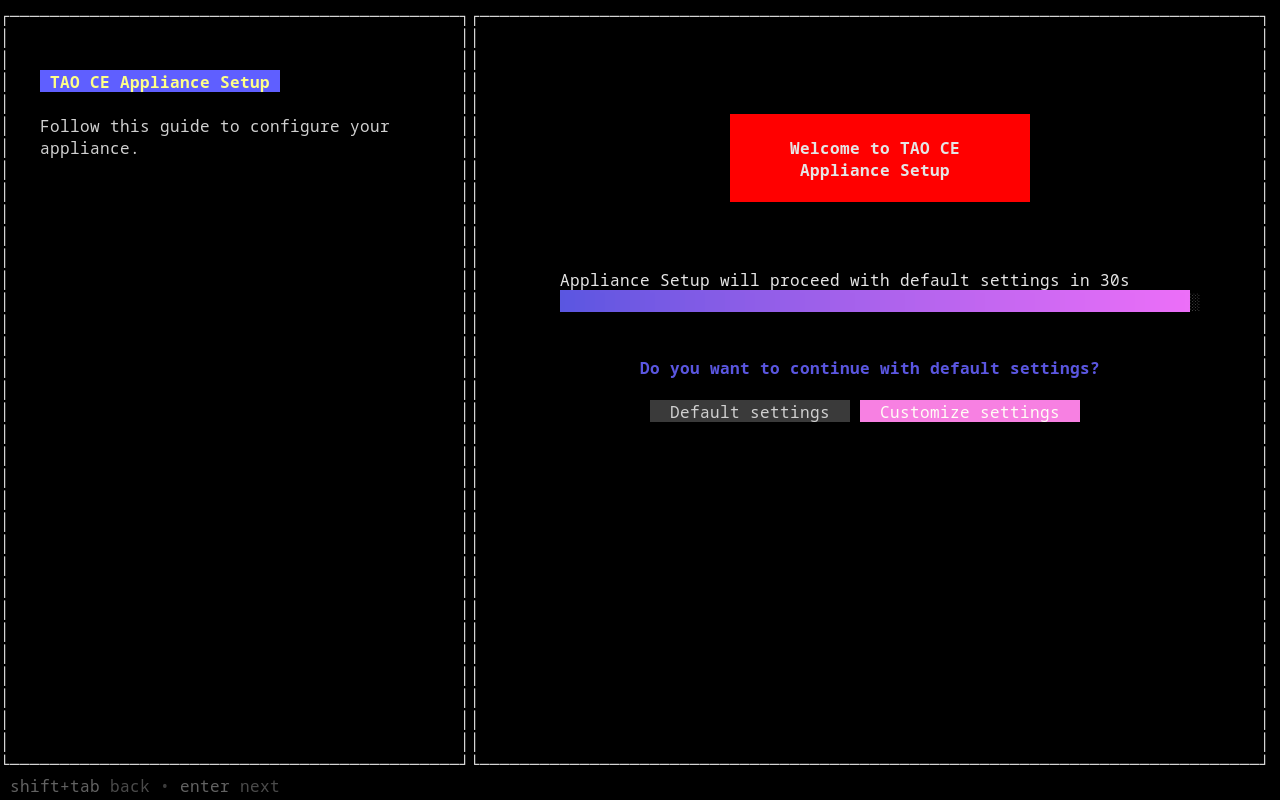
About TAO CE address
Note the address is different than usual container deployment (community.tao.internal), as we rely on mDNS protocol (which require .local domain) to propagate appliance address on your network.
If left unattended, TAO Community Edition will be deployed with default settings:
- language: English (US)
- timezone: UTC
- hostname:
tao-community-edition.local(with mDNS broadcast) - TAO Community Edition flavor: Full
About TAO CE address
If you choose a custom address, ensure to replace tao-community-edition.local while reading this guide.
Follow the instructions to change the following settings:
- language
- timezone
- hostname (with or without mDNS broadcast)
- if you choose to use mDNS broadcast, ensure hostname is ending with
.local
- if you choose to use mDNS broadcast, ensure hostname is ending with
- TAO Community Edition flavor:
Full: Complete version of TAO Community Edition, including portal, Delivery, Backoffice, Grader and ProctoringEssential: A complete environment for authoring and delivery, without Grader neither ProctoringLite: A subset of TAO Community Edition to run deliveries through Portal
Once submitted, Appliance will start downloading TAO Community Edition.
Long process
Depending on your hardware and network conditions, it can takes from 5 minutes to 2 hours before TAO Community Edition is ready to be used.
Why is it so long?
To accelerate image build process, and distribution, appliance image will not contain TAO Community Edition neither its dependencies.
At first boot, the appliance will download container images (~3GB) and uncompress them. TAO Community Edition container image is particulary long to uncompress, as it contains hundreds of thousands of files. Future versions may improve this behavior later.
This will also ensure you are deploying the latest version of TAO Community Edition.
Access Administrative console
Change password
Whenever you can, log in on local/SSH/web console to change default password.
During installation process, you may access SSH console, or Cockpit1 web console.
- Open a browser, and go to
https://tao-community-edition.local:9090 - You may face a Certificate warning, add this site in exceptions
- login with
taousername andtaopassword
- Open a terminal, and run the following command:
ssh tao@tao-community-edition.local - login with
taousername andtaopassword
- use VirtualBox console to attach a monitor
- find a console (TTY) with
Alt+F1(toF6) - login with
taousername andtaopassword.
Access TAO Community Edition
Readiness status
Current version is missing a proper Readiness feedback to let the user know when TAO Community Edition is ready. This feature is under active development and should be released soon.
Once ready, you should be able to connect to https://tao-community-edition.local.
Troubleshooting
TAO Community Edition is started, but it seems not accessible from my machine
Depending your local network settings, it may be unauthorized to use bridged interface, and Appliance may fail to expose its address. In particular, if local network policies requires hosts MAC addresses to be authorized prior connection, a virtual machine will not be trusted.
While we advise to contact your network administrator for a solution, you can attempt to use the following steps to gain a local access:
- reimport virutal machine
- in virtual machine settings, open
Networkpanel - attach Adapter 1 to
NATinstead ofBridged Adapter - add Adapter 2, enable it, and attached it to
Host-only adapter
This solution will allow the appliance to access Internet through your machine (NAT); while host-only network will let your host machine to access it.
TAO Community Edition is started, but it seems not accessible from local network
First, ensure you enabled MulticastDNS in setup wizard. If you did so, there might be some restrictions on your local network preventing access to the Appliance, like:
- Firewall rules blocking ports
5353/udp(mDNS) and/or443/tcp(HTTPS). - VLAN topology, preventing mDNS to cross your different networks. In such case your local network administrator may enable
reflectorin routing policies.
-
Read Cockpit documentation to administrate your appliance ↩