Deploy on Raspberry Pi
About Raspberry Pi support
Support of Raspberry Pi is experimental, and requires destructive operations.
The following guide has only been tested on Raspberry Pi 4 8GB. Support for Raspberry Pi 5 has not been tested and is not planned.
Also, ensure to check limitations described below.
About this guide
In this guide, we will explain how to download and start an Appliance to run TAO Community Edition on Raspberry Pi 4.
Requirements
To achieve this deployment, we will need:
- a Raspberry Pi 4, with at least 8GB of RAM
- an appropriate USB-C power supply 5V ≥2A
- (optional) an USB keyboard, and a HDMI screen with micro HDMI cable
- a microSD card, at least 64GB, and supporting class U1 or higher
- a microSD reader
- reliable Ethernet network, with high-speed Internet connection
- while Appliance can be used offline, first start will require to download 3GB of data
- ensure Raspberry Pi is connected to same LAN, and this network support DHCP
-
a computer running recent OS
Download Appliance image
From your computer, browse release link of tao-ce/cozy, and look for tao-ce-cozy-rpi4-server.raw.xz file.
Latest image can be directly downloaded here.
Etch microSD card
We will now load this image on your microSD card.
Risk of data loss
Please note this operation will completly remove all data on microSD card.
Also, depending on your system, pay attention to carefully identify target device, to avoid damaging other storage on your computer.
- First, plug microSD reader with the card in it. Your system may prompt to mount and explore it. Ignore it.
- Ensure to identify your microSD drive, exemple with
lsblk, we can find it is called/dev/mmcblk0on this computer.lsblk -pd \ -o NAME,SIZE,VENDOR,STATE,MODEL,SERIAL \ --filter 'TYPE=="disk" and HOTPLUG==1' # NAME SIZE VENDOR STATE MODEL SERIAL # /dev/mmcblk0 58.2G 0x000006fd - Find
tao-ce-cozy-rpi4-server.raw.xzimage and run the following command (ensure to change paths to match your device):IMAGE_PATH=path/to/tao-ce-cozy-rpi4-server.raw.xz #(1) SD_DEVICE=/dev/mmcblk0 #(2) xzcat $IMAGE_PATH \ | sudo dd \ of=${SD_DEVICE} \ status=progress \ oflag=direct \ iflag=fullblock \ bs=1M- path to
tao-ce-cozy-rpi4-server.raw.xzfile - microSD card device path identified in previous command
- path to
- First, plug microSD reader with the card in it. Your system may prompt to mount and explore it. Ignore it.
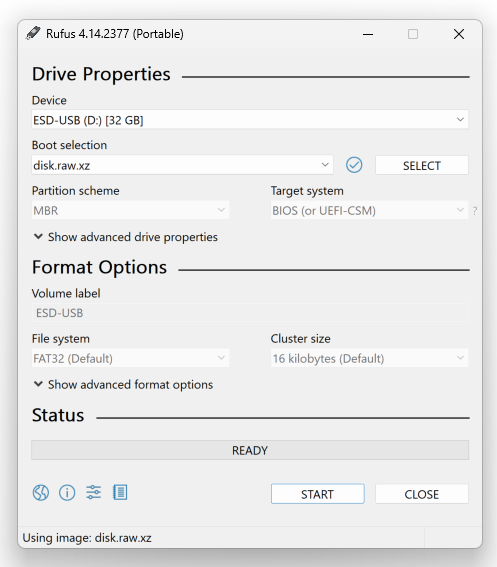
- Open your image etcher tool (e.g. Rufus)
- In
Device, look for the microSD card - In
Boot selection, chooseDisk or ISO image - Click on
SELECTbutton, and opendisk.raw.xz - Click
STARTto proceed.
Depending on your hardware, this operation can take 5 to 30 minutes.
Once done, ensure to unmount your microSD, and unplug it.
Start Raspberry Pi 4 with Appliance image
Now that the image has been copied on microSD card, you can insert it in Raspberry Pi 4.
-
(Optional) If you have keyboard and screen, you may plug them to Raspberry Pi 4.
-
Prepare USB power supply, and plug it.
-
In few minutes, you should see green LED next to microSD socket blinking.
Setup Appliance at first boot
About this wizard
This wizard will help you to configure basic settings at a early stage of deployment, as TAO Community Edition is not yet starting.
For more settings, you will be able to access Cockpit on https://tao-community-edition.local:9090 after system is started.
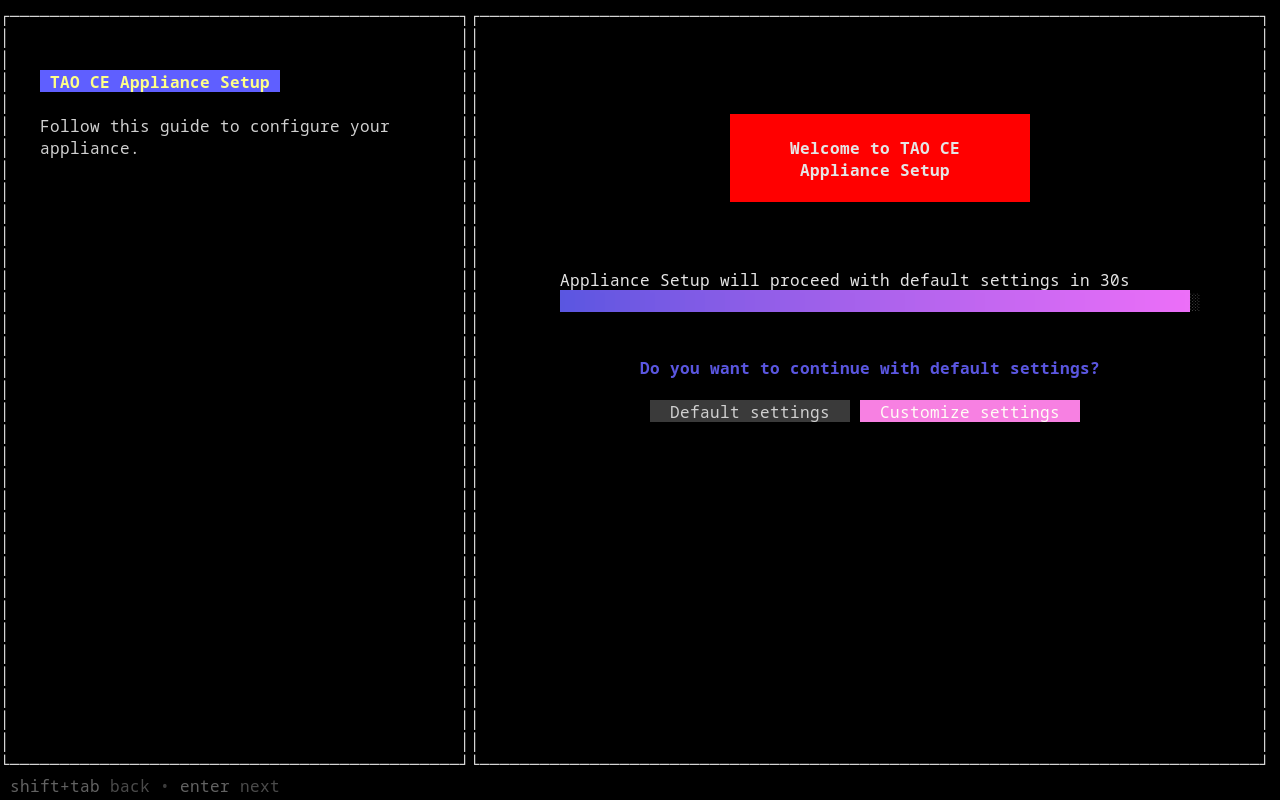
On first boot, you will notice a prompt to proceed to appliance setup.
About TAO CE address
Note the address is different than usual container deployment (community.tao.internal), as we rely on mDNS protocol (which require .local domain) to propagate appliance address on your network.
If left unattended, TAO Community Edition will be deployed with default settings:
- language: English (US)
- timezone: UTC
- hostname:
tao-community-edition.local(with mDNS broadcast) - TAO Community Edition flavor: Essential
- Hotspot:
- enabled by default
- SSID:
TAO Community Edition - password:
ChangeMeNow
About TAO CE address
If you choose a custom address, ensure to replace tao-community-edition.local while reading this guide.
Follow the instructions to change the following settings:
- language
- timezone
- hostname (with or without mDNS broadcast)
- if you choose to use mDNS broadcast, ensure hostname is ending with
.local
- if you choose to use mDNS broadcast, ensure hostname is ending with
- TAO Community Edition flavor:
Full: Complete version of TAO Community Edition, including portal, Delivery, Backoffice, Grader and ProctoringEssential: A complete environment for authoring and delivery, without Grader neither ProctoringLite: A subset of TAO Community Edition to run deliveries through Portal
Once submitted, Appliance will start downloading TAO Community Edition.
Long process
Depending on your hardware, it can takes from 20 minutes to 2 hours before TAO Community Edition is ready to be used.
Why is it so long?
To accelerate image build process, download and copy on microSD, appliance image will not contain TAO Community Edition neither its dependencies.
At first boot, the appliance will download container images (~3GB) and uncompress them. TAO Community Edition container image is particulary long to uncompress, as it contains hundreds of thousands of files. Future versions may improve this behavior later.
This will also ensure you are deploying the latest version of TAO Community Edition.
Access Administrative console
Change password
Whenever you can, log in on local/SSH/web console to change default password.
During installation process, you may access SSH console, or Cockpit2 web console.
- Open a browser, and go to
https://tao-community-edition.local:9090 - You may face a Certificate warning, add this site in exceptions
- login with
taousername andtaopassword
- Open a terminal, and run the following command:
ssh tao@tao-community-edition.local - login with
taousername andtaopassword
- connect a screen and a keyboard to Raspberry Pi
- find a console (TTY) with
Alt+F1(toF4) - login with
taousername andtaopassword.
Access TAO Community Edition
Readiness status
Current version is missing a proper Readiness feedback to let the user know when TAO Community Edition is ready. This feature is under active development and should be released soon.
Once ready, you should be able to connect to https://tao-community-edition.local.
Limitations
Hardware specs of Raspberry Pi 4 implies limitations which may impact your experience with TAO Community Edition.
No Real-Time Clock
Raspberry Pi has no Real-Time Clock, therefore date/time may need to sync at every startup. Appliance image will automatically attempt to sync using NTP at startup, however it will not work in offline conditions.
Significant clock difference between Raspberry Pi and client machines may prevent users to access TAO Community Edition, and may affect test consistency.
To adjust date/time:
- Open
https://tao-community-edition.local:9090, and log in. - Click on
Overviewin side menu. - Ensure you get
Administrative access. If needed, click onTurn on administrative accessin the yellow banner. - Then in
Configurationsection, click on current time, next toSystem time. - Adjust date/time, and click
Change.
- Open SSH/local session with
taouser. - Run the following command (date format is
YYYY-mm-ddTHH:MM:SS, e.g.2024-12-25T19:00:00):sudo date -s 2024-12-25T19:00:00
Performances
TAO Community Edition on Raspberry Pi 4 would support up to 50 concurrent test-takers, with significant delay between test items (up to 10 seconds).
Performances are directly impacted by microSD throughtput (max. 30MB/s for class U1) and limited speed of Raspberry Pi CPU (up to 1.8GHz). Overclocking has not been investigated, and is not recommended.
You can use btop on terminal to get performance metrics.
Power supply stability
Raspberry Pi relies on USB power and has no feature to address power supply inconsistency. Therefore, any operation on power supply may cause a power loss and a hard-reset of Raspberry Pi, which may imply data corruption.
While a powerbank can be used to fully power a Raspberry Pi for days, any operation on power supply will interrupt USB power distribution. Ensure to properly shutdown Raspberry Pi before any operation on power supply.
Based on our measures during TAO Community Edition benchmarks, Raspberry Pi uses 3W (with peaks up to 6W). A generic 5000mAh powerbank will last up to 5 hours.
Start delay
While first boot delay is expected due to download and installation operations, Raspberry Pi may takes up to 10 minutes to start properly.
There is currently no easy solution to check for readiness, but we are currently working on it.
What's next?
- You may now follow TAO Community Edition first steps and user guide.
-
they are part of Linux standard commands of major distributions ↩
-
Read Cockpit documentation to administrate your appliance ↩